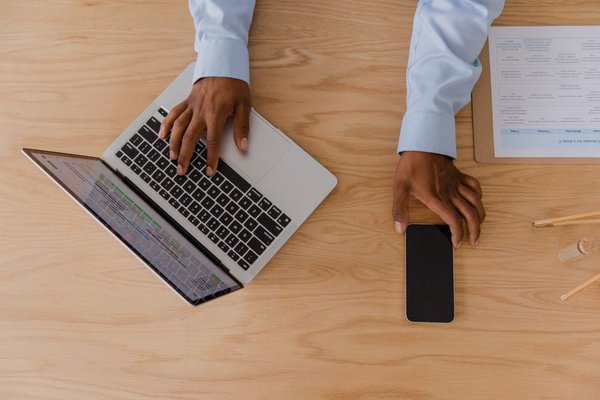
Remote desktop software can turn a laptop, phone, or tablet into a doorway to another computer, but the best choice depends on what happens after you connect. A freelancer may only need reliable access to one office PC, while an IT team may need unattended access, user permissions, session logs, and dozens of managed endpoints. Connection quality matters, but so do security, device support, file transfer, setup time, and pricing.
The best remote access software is the one that fits the number of computers you need to reach, the devices you connect from, and the level of control required when nobody is sitting at the remote machine.
What to compare before choosing remote desktop software
Start with unattended access. If you regularly connect to your own work computer or a server, you should be able to authenticate without someone approving the session. For business use, look beyond a basic password and check for two-factor authentication, role-based access, allowlists, device management, and session logging.
Platform support matters too. Mixed environments can include Windows, macOS, Linux, Android, iOS, and browsers. File transfer, multi-monitor support, remote printing, and browser access can make the difference between occasional remote PC control and software you can comfortably use every day.
Best remote desktop software compared
TeamViewer: strong for business support
TeamViewer is one of the broadest options for remote support and unattended access. It supports major desktop and mobile platforms, offers file transfer and remote printing, and includes business controls such as two-factor authentication, allowlists, device policies, and centralized management. TeamViewer says sessions use 256-bit session encryption.
Personal, non-commercial use remains free, while commercial users move to annual subscriptions. Its management features are most useful when remote access is part of an IT support workflow rather than simply a way to reach your own PC.
Splashtop: excellent value for regular remote work
Splashtop is attractive when straightforward setup and practical remote-work features matter more than enterprise complexity. Its Remote Access Solo plan currently starts at $6 per month when billed annually and includes unattended access, drag-and-drop file transfer, and remote printing. The Pro tier adds multi-monitor support, user roles, chat, and session recording.
Sessions are protected with TLS and 256-bit AES encryption, with optional two-factor authentication. For an individual who works from home several days a week, it offers a strong mix of features and cost.
AnyDesk: flexible unattended access
AnyDesk suits users who want broad device support and detailed unattended-access controls. Security features include access control lists, two-factor authentication, session logs, and encryption. Its current Solo business plan is listed at $23.12 per month equivalent when billed annually, with one licensed user, one connection, mobile support, and up to 100 managed devices for unattended access.
The price is higher than Splashtop’s entry plan, but the managed-device allowance can make sense for a technician or small business connecting to many endpoints.
RemotePC: practical for several computers
RemotePC is structured around the number of computers you need to reach. Its plans include always-on remote access, file transfer, remote printing, multi-monitor features, session recording, and browser access. Higher tiers add user organization, single sign-on, and other administrative features.
RemotePC often advertises introductory discounts, so compare the renewal price rather than judging it only by the first-year offer. That matters when choosing work from home software for several employees.
Chrome Remote Desktop: simplest for personal access
Chrome Remote Desktop is a simple option when you mainly want to reach your own computer without a large set of support tools. Google supports remote access to Windows, macOS, and Linux computers from another computer or mobile device. Access uses a PIN, and Google states that sessions are fully encrypted.
It does not aim to match the centralized management, reporting, role controls, or technician workflows of paid business platforms. For occasional access to files and applications, however, setup is direct.
RustDesk: best for self-hosting control
RustDesk stands apart because it offers an open-source self-hosted server option. It supports Windows, macOS, Linux, Android, iOS, and web access, and its documentation describes peer-to-peer connections with end-to-end encryption. Organizations can run their own ID and relay infrastructure instead of relying entirely on a third-party SaaS service.
The open-source self-hosted server is free, while the current Individual Pro self-hosting plan starts at $11.88 per month billed annually and adds two-factor authentication, a web console, audit logs, and centralized settings. The trade-off is administration because someone must secure and maintain the server.
Which option fits your situation?
For a solo remote worker, Splashtop offers a strong balance of price and practical features. TeamViewer makes more sense when remote support and centralized governance are priorities. AnyDesk suits users managing many endpoints, while RemotePC is worth considering when the main requirement is reaching several computers under one account.
Chrome Remote Desktop is sensible for simple personal access, and RustDesk is the more specialized choice for technically capable users who prefer self-hosting. A remote work software guide can help you compare these tools with VPNs, cloud storage, and collaboration platforms rather than treating remote desktop as a complete remote-work stack.
A practical setup example
Imagine a designer who keeps a powerful Windows workstation in the studio but travels with a lightweight laptop. The designer needs unattended access, multi-monitor support, and easy file movement. Splashtop or TeamViewer would usually be more practical than a minimal browser-based tool. Before leaving, the designer should test login behavior, enable two-factor authentication, prevent unexpected sleep, and confirm that large project files are accessible.
Even excellent remote desktop software cannot overcome a weak upload connection at the host computer. Improving the office network may produce a bigger real-world benefit than changing applications. A secure remote access checklist is also useful before enabling unattended connections.
FAQ
What is the best remote desktop software for working from home?
Splashtop is a strong option for many individual remote workers because it combines unattended access, file transfer, remote printing, and relatively low entry pricing. TeamViewer may suit users who need more centralized controls.
Is remote desktop software safe to use?
It can be when connections are encrypted and the software is configured carefully. Enable two-factor authentication where available, use unique passwords, keep computers patched, remove old authorized devices, and disable unattended access when it is no longer needed.
Can I access a remote computer from my phone?
Yes. TeamViewer, Splashtop, AnyDesk, Chrome Remote Desktop, RemotePC, and RustDesk all provide mobile access in some form. Detailed desktop work is usually easier from a laptop or tablet with a keyboard.
Do I need remote desktop software if I already use cloud storage?
Cloud storage gives you remote access to files, while remote desktop software gives you access to the actual computer, installed applications, settings, and local resources. Many people use both.
Choosing the right tool
The best remote desktop software removes friction without creating unnecessary security or licensing complexity. Compare unattended access, supported devices, authentication controls, file transfer, performance on your real network, and renewal pricing before committing. For business use, prioritize auditability, account security, and manageable permissions as much as connection speed.